
Viewing Engine Logs
There are several ways of viewing the logs. The most straightforward is to view the actual log files using the Log Files feature in the GridServer Administration Tool.
To view an Engine log:
-
In the Administration Tool, go to Grid Components > Engines > Engine Admin.
-
Select the Engine for which you want to view a log.
-
Click the Actionslist, and select Log Files.
-
A window opens with a list of links for each of the logs residing on that Engine, listed by date and time. You can do any of the following:
-
Select an Engine Daemon or a particular Engine from the list in the upper left. This shows all of the log files on that Engine Daemon or Engine and their sizes. You can also type in the list box to quickly filter the list to partial matches.
-
Click on a log file name and its content is displayed to the right in the window.
-
Click the links in the upper right to download a ZIP archive of all log files on the host, a ZIP archive of all log files of an Engine Daemon or Engine instance, or a particular log file.
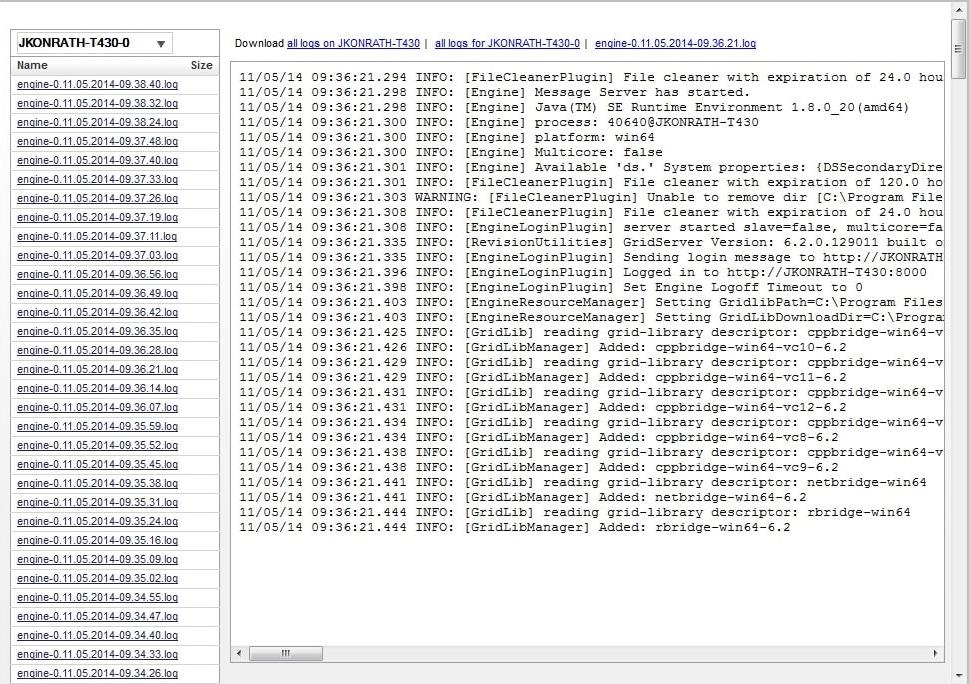 The Log Files window
You might also wish to view the logs in real time. You can do this with the remote log feature.
-
Related information
To view the remote log
-
Go to Grid Components > Engines > Engine Admin.
-
Select the Engine for which you want to view a log.
-
Click the Actionslist, click Remote Log.
-
A window opens, displaying the log on the Engine as events occur. You can click Clearto clear the log, or Snapshotto capture a screen of the log in a new window.
You can also run the Engine in console mode; typically, this is only done during development.
Windows
You can run the Engine from a command line with the command
engine.exe -console. This starts the Engine in console mode and logging information scrolls in the command window in which you start it.
UNIX
You can run the Engine from a command line with the command
engine.sh startfg. This starts the Engine in the foreground and the logging information scrolls in the terminal in which you start it. Note that this is only suitable for debugging purposes.
The Engine Log Search page enables you to search for all Severe-level Engine logs for a Service ID across all Engines, and optionally search those results for a keyword. Results are shown with a summary of each matching log for each Engine, with links to corresponding URLs to logs with excerpts. First, logs are searched for the given Service ID; then they are searched for the regular expression “
.*Severe.*”, then they are optionally searched for a given keyword.
To search Engine logs
-
Go to Diagnostics > Service Diagnostics.
-
Enter a Service Session ID in the Service Session IDbox, or click a name in the Service Namelist. The list of Service Names is provided from the Service Admin list, which is the in-memory list of all Services recently run.
-
Enter a keyword in the Keywordbox, or leave it blank to return all entries.
-
Click Search.
Results are shown with a summary of each matching log for each Engine, with links to corresponding URLs to logs.