
Enabling Engine Daemon Authentication
You can enable Engine Daemon authentication during Engine installation. This feature is supported only for Authentication Mode, (Admin > User Admin > Authentication), configured as Internal DB or LDAP.
-
Go to Admin > System Admin > Manager Configuration > Engine and Clients and set Daemon Authenticate to true.
-
Create a user with a Security Role with the Install Engine Daemon feature enabled. Ensure that the user has a password that is at least eight characters long.
-
During the Engine installation, depending on your operating system, perform one of the following procedures:
Note: If the Engine is installed with an invalid username or password, the Engine Daemon stops.
For Windows by using the Installer
Enter the configuration, username, and password in the Other options dialog.
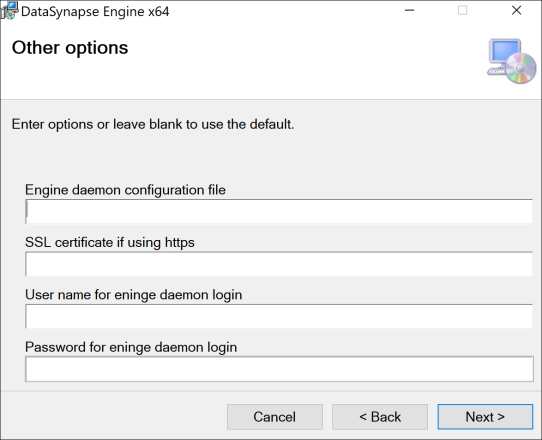
Engine Daemon Authentication
For more information about installing the Windows Engine by using the Windows Engine Installer, see Installing Windows Engines.
For Windows by using the Command Line Interface
To enable Engine Daemon Authentication by using the command line, run the following command:
msiexec /quiet /i DSEngineInstall.msi URL=Managerhostname:port
 LOGINUSER=user LOGINPWD=pwd DAEMCONFIG=config
| Parameter | Description |
|---|---|
LOGINUSER |
Username for Engine Daemon login |
LOGINPWD |
Password for Engine Daemon login |
For more information about installing the Windows Engine by using the Windows command line, see Command Line Unattended Install.
For UNIX
Use the following command:
./engine.sh start -installuser=user -installpwd=password -config=myConfig\
The following table lists the
engine.sh arguments:
engine.sh Arguments
| Argument | Description |
|---|---|
installuser |
Username for Engine Daemon login |
installpwd |
Password for Engine Daemon login |
For more information about installing Unix Engine, see Installing UNIX Engines .
To Reset the Username or Password
-
Delete the
DefaultInstallOption.datfile present in theEnginedirectory. -
From the command line, start the Engine based on the operating system:
-
For Windows, use the following command:
Engine.exe start -installuser=user -installpwd=password -config=myConfig -
For UNIX, use the following command:
./engine.sh start -installuser=user -installpwd=password -config=myConfig\
Alternatively, you can also perform the following steps to reset the username or password: -
-
Open the
DefaultInstallOption.datfile present in theEnginedirectory. -
Delete all the content and then add the username or password as follows:`installuser=userinstallpwd= pwd`