
Uploading a License File
This procedure describes how to upload a new license file to the GridServer Manager.
Before You Begin
Ensure that you have the following:
-
Administrative access: You must have a user account with the ** Configure** and View roles.
-
License file: Obtain a valid license file (a
.serfile) from TIBCO Support or your account representative.
To upload a new license file, perform the following steps:
-
Navigate to the GridServer Manager GUI URL. For example,
http://<manager-host>:<port>/livecluster/manage/control/base/license.jsp. -
Log in to the manager using a user account that has Configure access.
-
To upload the new license file, navigate to Admin > System Admin > License Information.
-
Click Choose File, and then select your
.serlicense file from your local machine.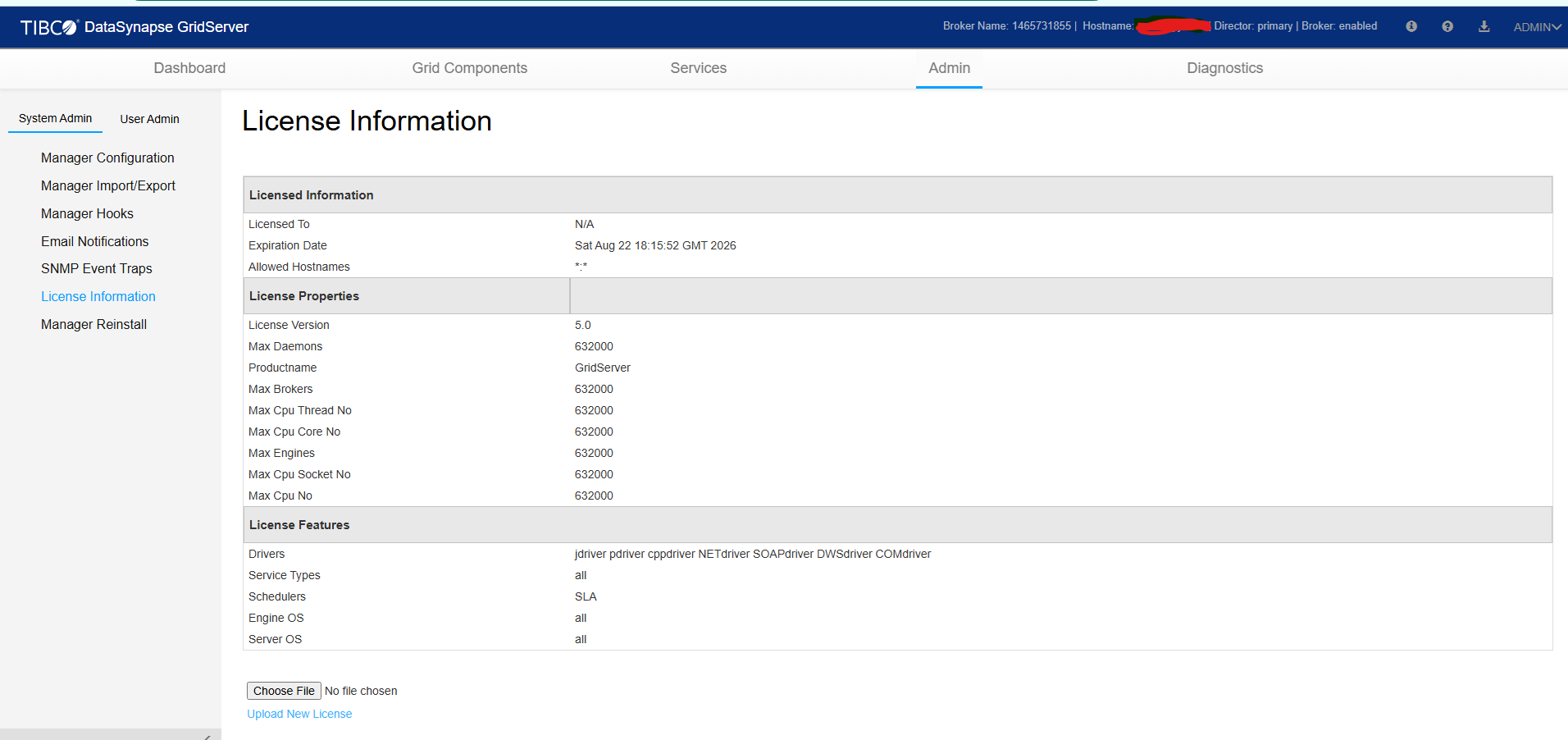
-
Click Upload New License.After the upload is complete, the page refreshes to display the updated license details.
-
Verify the Expiration Date to ensure it reflects the date as per your product entitlement.